Follow these seven steps to prepare your iPhone before updating to iOS 26.
Get your iPhone ready for iOS 26 before you tap update.
The new iOS 26 has a redesigned interface and many new capabilities, so many users are looking forward to downloading it as soon as possible.
However, there are several steps to take beforehand to ensure a smooth update, especially for older iPhones. These steps are optional, but they can help prevent issues.
First, verify that your iPhone is compatible with iOS 26. Most newer iPhones are supported. If you have an iPhone with an A13 chip or later (iPhone 11 or newer), it is compatible.
Note that Apple Intelligence features will be exclusive to the iPhone 15 Pro, iPhone 16, and iPhone 17 series.
Backing up your iPhone is also important before updating. This protects your data in case any problems occur during the installation. There are two main backup options:
iCloud Backup: Go to Settings > [Your Name] > iCloud > iCloud Backup and select Back Up Now. Ensure you have enough available iCloud storage.
Computer Backup: Connect your iPhone to a computer. For Macs, open Finder; for PCs, use the Apple Devices app. If using an older Mac (macOS Mojave or earlier) or a PC without the Apple Devices app, use iTunes. Follow on-screen instructions if prompted.
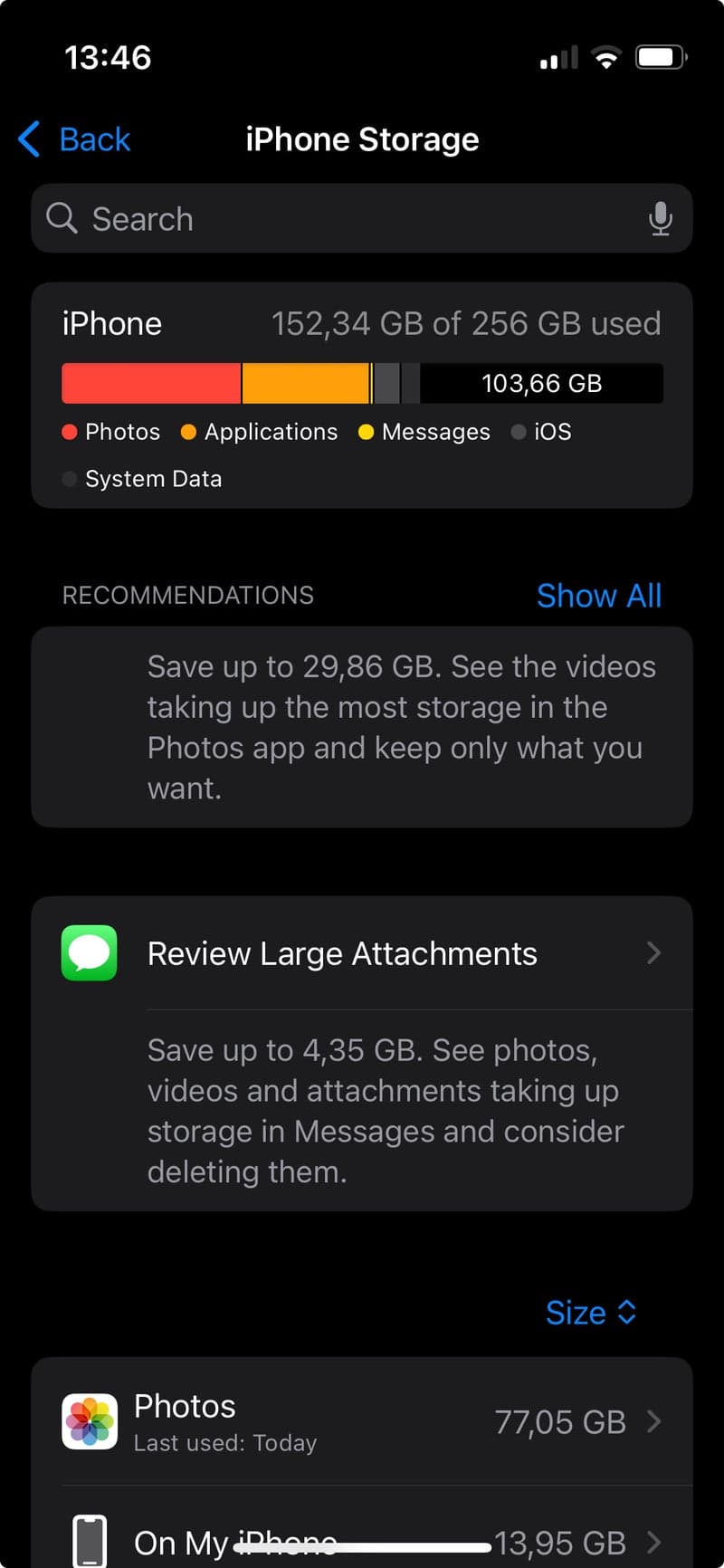
Because iOS 26 is a large update, Apple recommends having at least 20 GB of free storage. If your phone is full, you may need to free up space.
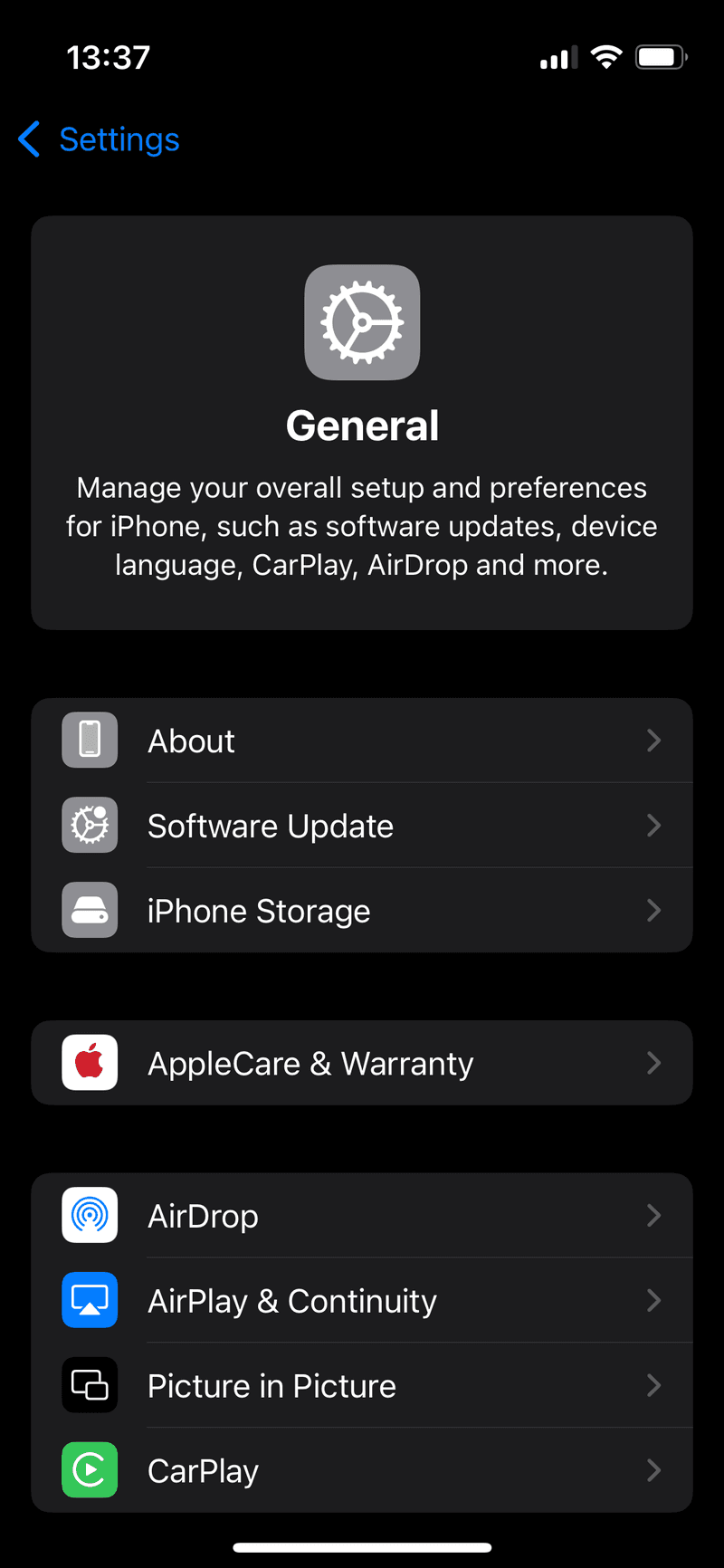
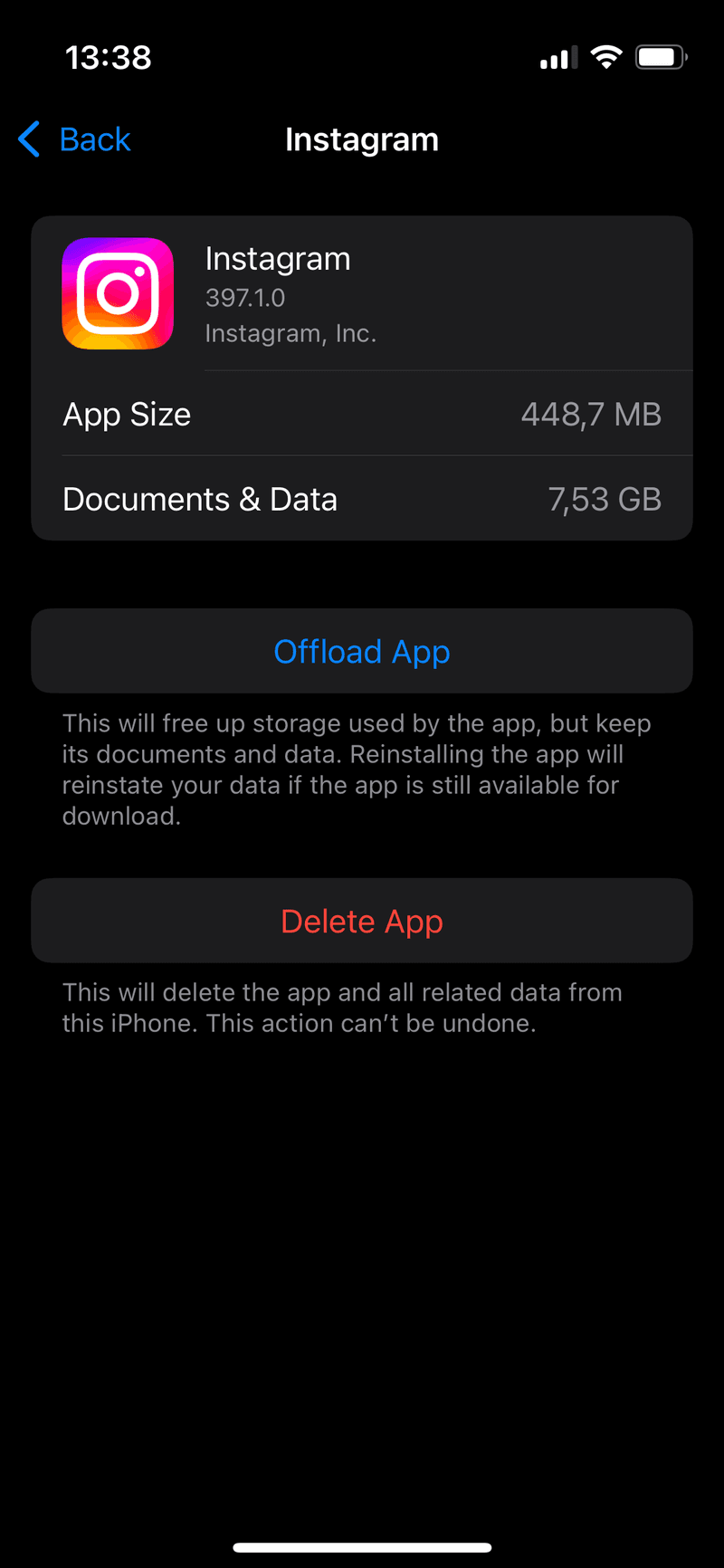
Remove unused apps: Go to Settings > General > iPhone Storage to see which apps use the most space. Delete unnecessary apps or use the Offload Unused Apps feature to remove apps while keeping their data.
Delete media: Remove any old or duplicate photos, videos, or downloads.
Clear app cache: Apps like Spotify and YouTube often store a lot of cached data. Clearing this data can free up a significant amount of space.
Updating apps before installing iOS 26 is also important. Outdated apps can lead to errors or compatibility problems.
System apps (Mail, Messages, Photos, Safari, etc.) update automatically with the iOS update. However, apps downloaded from the App Store need separate updates, unless automatic updates are enabled.
Open the App Store, tap your profile icon, and scroll down to see available updates. Select Update All or choose individual apps to update.
The update process requires power and time. Ensure your iPhone has at least 50% battery or keep it plugged in. Also, use a reliable Wi-Fi connection, as the update file is large.
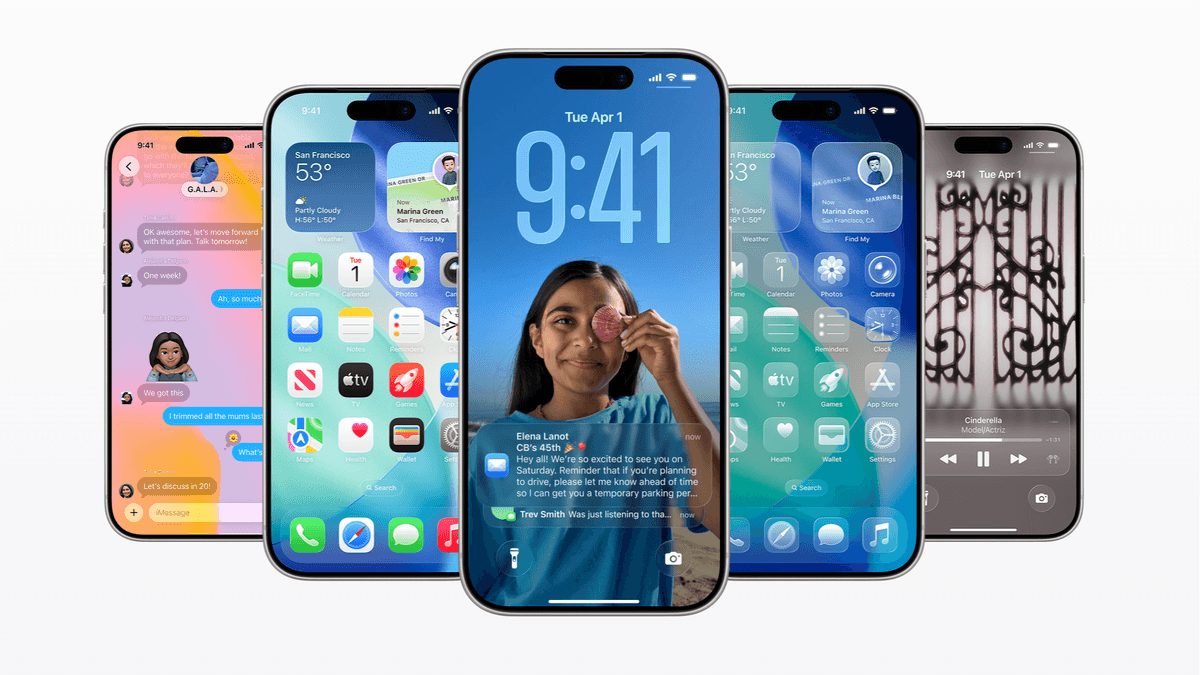
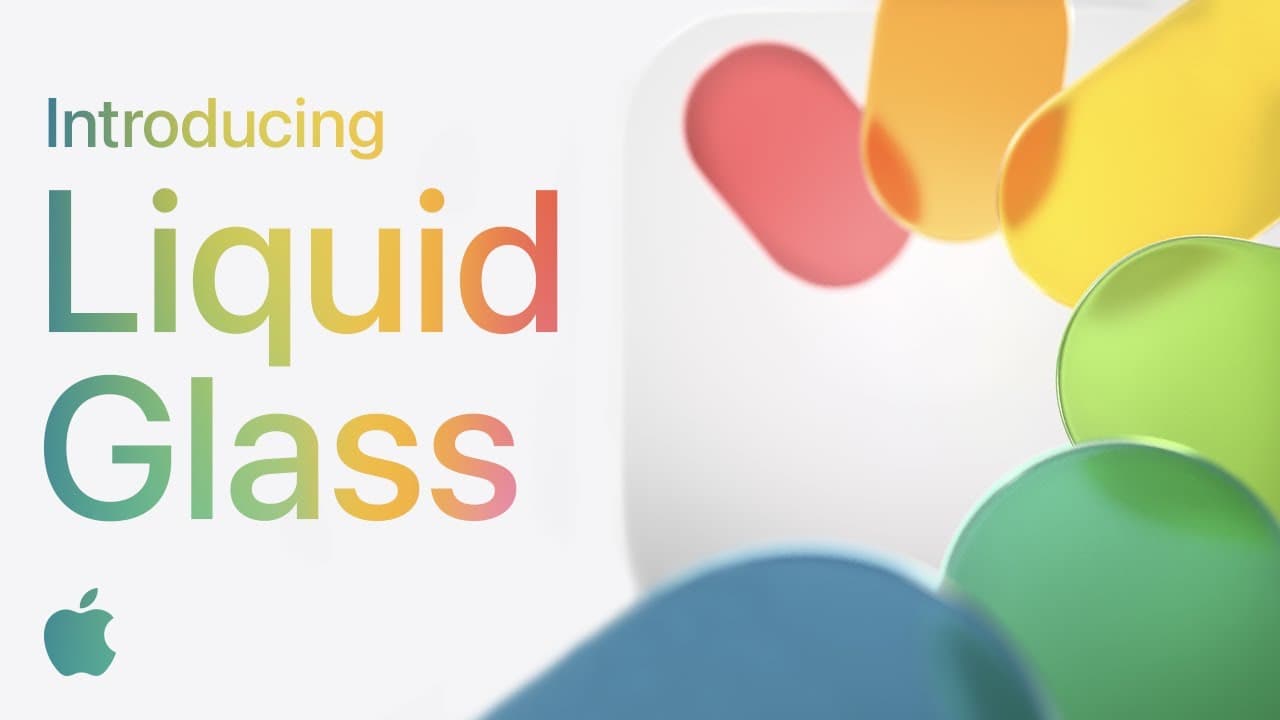
Every major iOS update changes the user experience, and iOS 26 is no different. It includes a Liquid Glass redesign, a redesigned Photos app, and tools like Call Screening and Live Translation.
Take some time to learn about these changes to prepare for the new operating system.
If a stable iPhone is essential, consider waiting to update.
Apple often releases a bug-fix update (like iOS 26.0.1) shortly after the initial release. However, do not wait too long, as these updates often include important security improvements.
Explore the most unique and memorable phones of the past two decades! "Iconic Phones" is a beautifully illustrated book launching in a few months.
"Iconic Phones: Revolution at Your Fingertips" is a coffee table book for phone enthusiasts. It explores the stories of over 20 popular phones and takes you through the tech advancements that have transformed our lives. Sign up to get an early discount.