I updated my Galaxy to One UI 9 and immediately changed these 5 settings - MakeUseOf

One UI 9 offers more flexibility in how you can customize your Quick Settings panel. One UI 9 now comes with AI Network Guard, which lets you block network access for specific apps on your phone. It's been about a week with One UI 9, and my phone feels a lot more fluid than it did on One UI 8.5.
Tashreef's fascination with consumer technology began in the school library when he stumbled upon a tech magazine, CHIP, which ultimately inspired him to pursue a degree in Computer Science. Since 2012, Tashreef has professionally authored over a thousand how-to articles, contributing to Windows Report and How-To Geek. He currently focuses on Microsoft Windows content at MakeUseOf, which he has been using since 2007.
With hands-on experience building websites and technology blogs, he brings practical developer insights to his technical writing. You can view his complete work portfolio at itashreef.com.
You might also stumble upon his short how-to video explainers, simplifying complex topics. Beyond writing, Tashreef enjoys creating short explainer videos, gaming, and exploring animated shows.
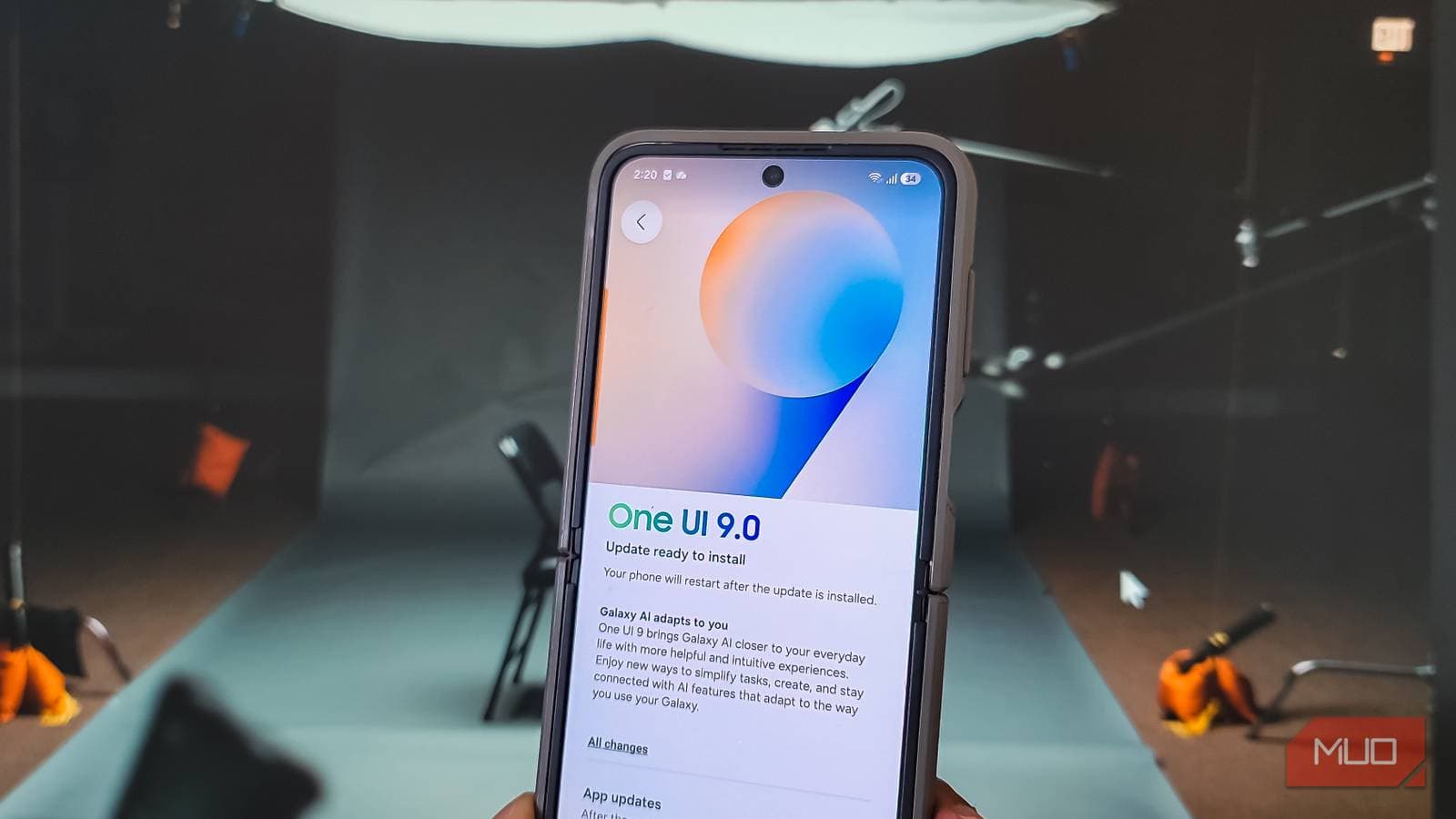
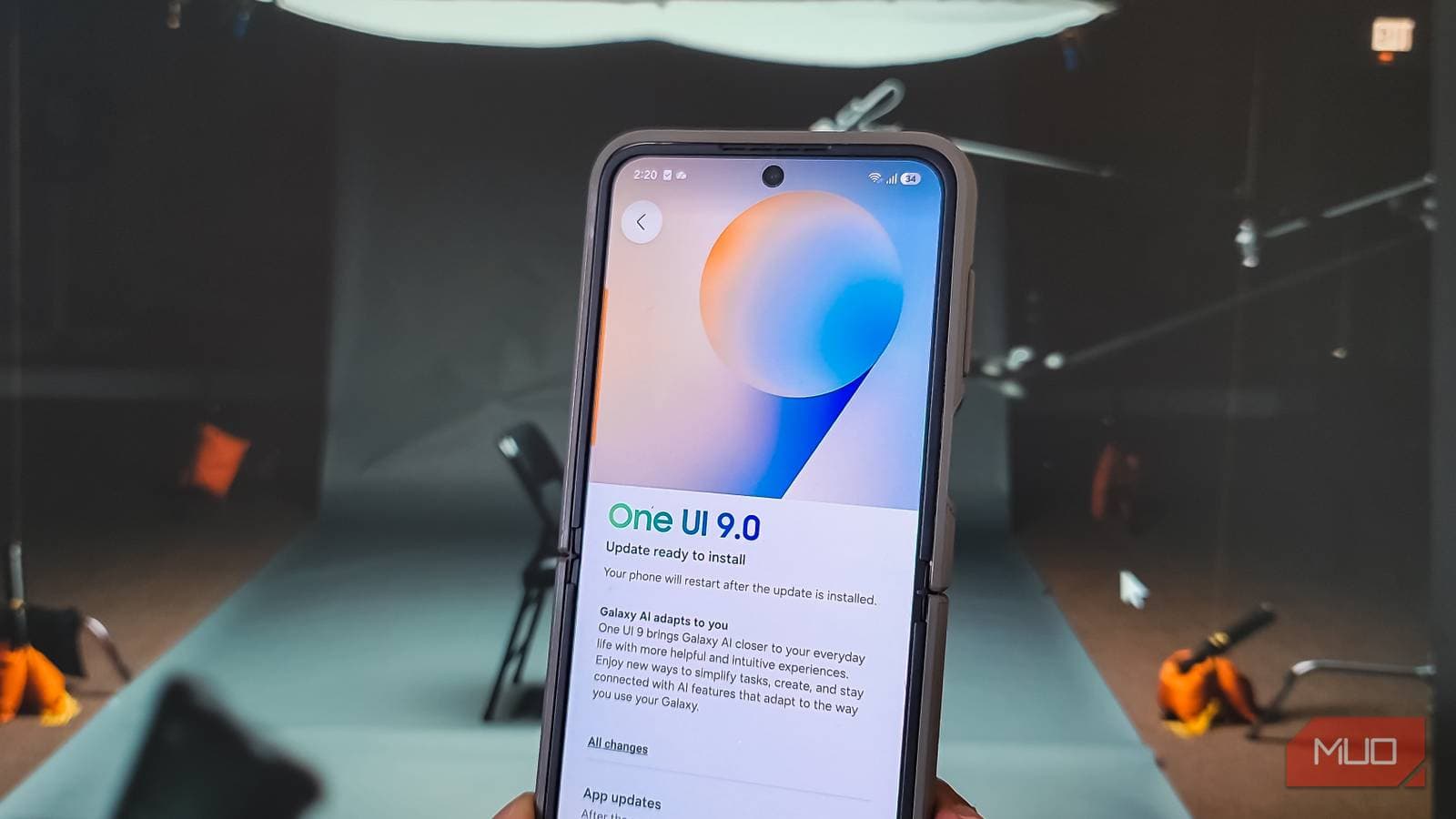
The One UI 9.0 (Android 17) update landed on my Z Flip 6 a few days ago. I'm used to my Z Flip 6 getting the One UI love late, but it's finally here. This time, it's less about AI and more about features I can put to use every day. For instance, the Quick Settings panel now has separate tiles for dark mode and sound mode that no longer sit next to the brightness slider.
But simply installing the latest update doesn't mean all the worthwhile changes are enabled by default. Much like the last update (One UI 8.5), I went digging and made five changes that I think are worth doing on any Galaxy running One UI 9.0.
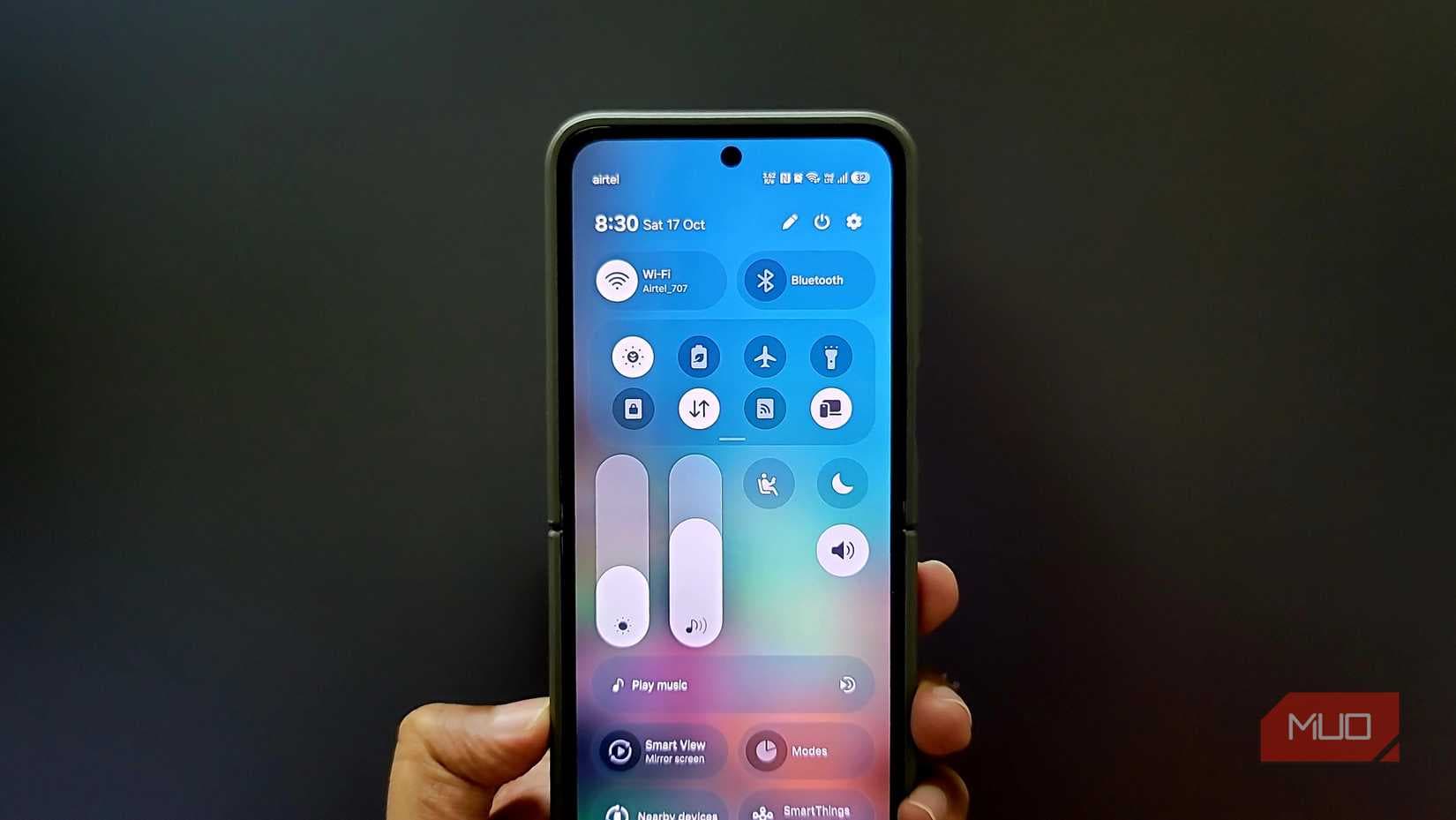
One UI 9 offers more flexibility in how you can customize your Quick Settings panel. It builds on the One UI 8.5 update, which separated the brightness and volume sliders into their own rows, and now you can make them even bigger or smaller. You can also turn the sliders vertical for finer adjustments, similar to the volume sliders on iOS.
The buttons that used to sit permanently next to the brightness and volume sliders are now separate tiles. You can move them anywhere in the panel, resize them into a pill shape, or remove them entirely. With those buttons detached, the sliders can span the full screen width or just half of it.
Along with this, the media controller is also resizable now. In earlier versions, you could only make it bigger. Now you can shrink it down to a small tile, which I find more practical. I've placed the sliders above a compact media controller on the right side, so all three are easy to reach with one thumb without stretching across the screen.
Android phones have supported multi-finger gestures for years, and some of the best gestures are still hidden in plain sight. The newest quality-of-life feature in One UI 9, though, isn't built into the settings. It comes from Good Lock's Home Up module, which now supports multi-finger gestures.
The updated Home Up (version 18.0.0.24) lets you use two, three, four, or even five fingers to trigger actions. Each finger count supports nine gestures: swipe left, right, up, down, pinch, spread, tap, double tap, and long press. That takes the total count to 36 combinations, with 27 assignable actions to choose from.
I've configured mine to take a screenshot with a three-finger tap, switch between apps with a three-finger swipe, and control volume with four-finger swipes up and down. I also set up quick Access to the notification panel, dark mode, brightness adjustment, and the AI assistant. It takes some getting used to, but once the muscle memory kicks in, you rarely need to reach for a quick setting tile or press the physical buttons. One thing to note is that the gestures only work when your navigation bar is set to Swipe gestures (multiple directions) under Settings > Display > Navigation bar. If your new gestures seem broken, check that setting first.
This may not be the most exciting feature, but it's one that I've asked to be included for years now. Until now, I relied on a third-party network speed monitor to show live download and upload speeds on my status bar. One UI 9, again through Good Lock, now offers this natively with the QuickStar module.
That means one less app on my phone and better integration with the rest of the system. The third-party app I was using would occasionally glitch after a restart or not match the status bar font, and QuickStar doesn't have either problem. To set it up, install the Good Lock app and the QuickStar module from the Galaxy Store. Then open QuickStar > Visibility of Indicator Icons and toggle the Network Speed switch. The speed indicator appears in your status bar, and it updates in real time as you browse or download files.
One UI 9 now comes with AI Network Guard, which lets you block network access for specific apps on your phone. If you don't want certain apps reaching the internet, whether for your kids or for your own sanity, you can cut them off individually.
I've been using it to block in-app ads on apps that show excessive ads in between content, like certain games that make it nearly impossible to get anything done. Without network access, those apps can't load ads, and the experience becomes a lot cleaner.
AI Network Guard is part of Connectivity Labs, a hidden Wi-Fi menu on Samsung phones that bundles several network diagnostic tools. To find it, head to Settings > Connections > Wi-Fi, then tap the three-dot menu and choose Intelligent Wi-Fi. Tap Connectivity Labs > AI Network Guard > Set up a Guardian PIN. Type in a PIN, which you'll need for any future changes, so your kids can't undo your restrictions without knowing the code.
Then tap Manage Restrictions, type your PIN again, and select Restrict Apps. Choose the app you want to block, say Instagram, and tap Confirm in the top-right corner. The selected app won't be able to access the network, and if it depends on it, it will simply show an Access Blocked message.
The last feature I enabled wasn't for me, but for my partner, who gets motion sickness in the car. The new Motion Assist feature places two columns of small shapes on the left and right edges of your screen. These shapes drift as the car accelerates, brakes, or turns, giving your eyes motion cues that match what your body feels. The idea is to reduce the sensory mismatch that causes nausea when you're looking at a screen in a moving vehicle.
It only works when you're actively using your phone, but that's exactly when motion sickness hits, and most people do use their phones as passengers anyway. To turn it on, go to Settings > Google > All services > Personal & device safety > Motion Assist. Toggle it on, and the next time you're in a moving vehicle, your phone will detect the motion and activate the shapes on screen. You can also tap Add to place a shortcut button in your Quick Settings panel for faster Access.
It's been about a week with One UI 9, and my phone feels a lot more fluid than it did on One UI 8.5. On my Z Flip 6, the cover screen has also become significantly more useful. Apps play nicely on the smaller display now, and as always, anything that isn't officially supported can be added through the MultiStar module in Good Lock. The phone no longer asks me to flip open for every second action. So while One UI 9 may not be as big of a leap as One UI 8.5, it makes my phone feel more complete, even without tinkering with any of the advanced and hidden settings.